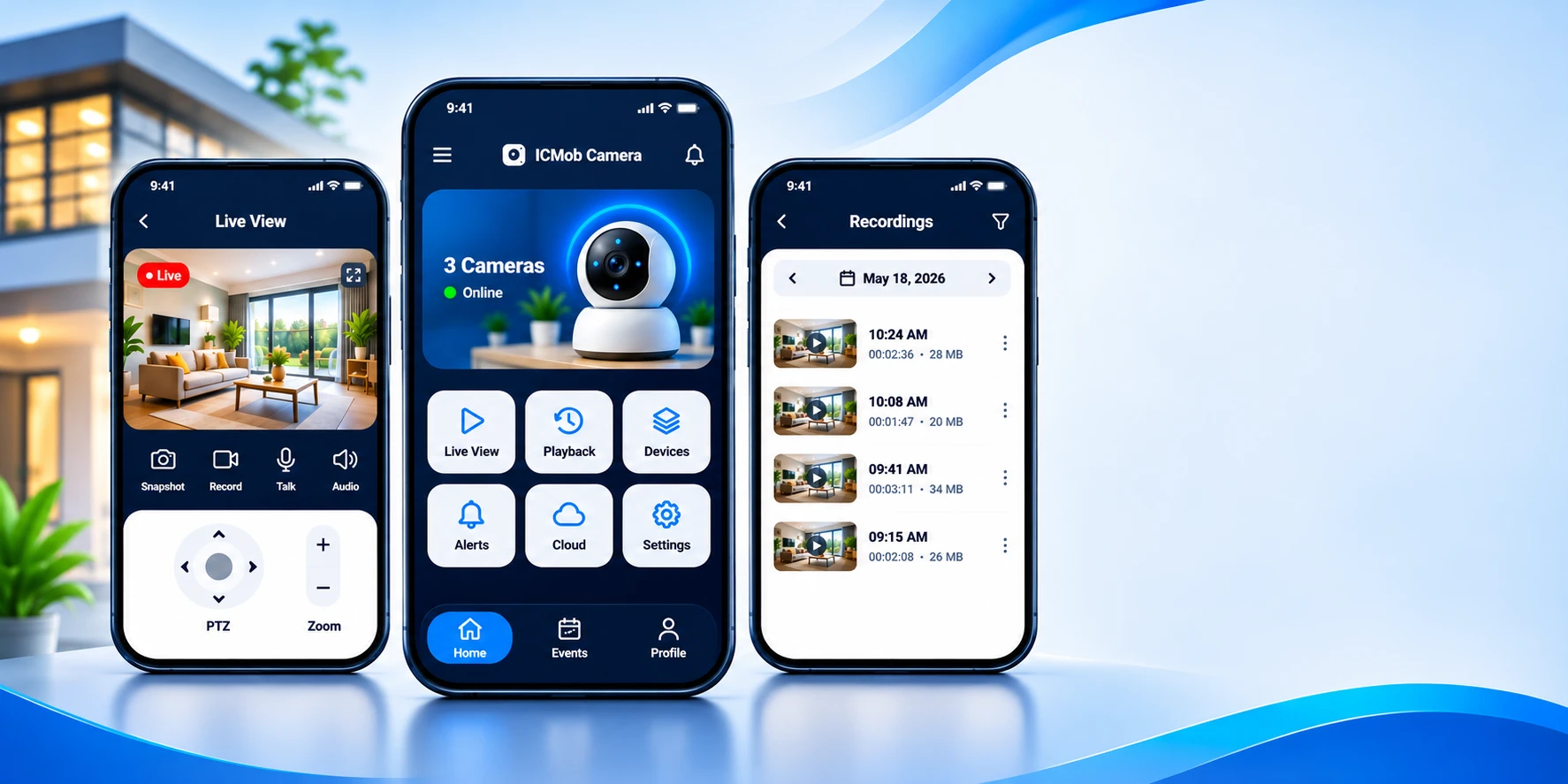
From download to live view in a few minutes – no technical skills or special tools needed.
Keep these few things ready and setup will take only a few minutes.
Plugged in and powered on. The camera ID or QR code is usually printed on its label.
The name and password of the Wi-Fi network the camera will use.
An Android or iOS device with an internet connection to run the app.
Lets the camera record locally, even when the internet is down.
Install ICMob Camera on your Android or iOS phone.
Connect your IP camera or Wi-Fi camera to the app. It takes only a couple of minutes.
Watch live video anytime, anywhere – and let the app work for you in the background.

Once your camera is added, log in with the same account on any phone, tablet or computer and see the same cameras instantly. There is nothing to set up again.
Once the camera is added, these four quick steps make it ready for daily use.
Use a clear name such as “Front Door” or “Shop Counter” so alerts are easy to understand.
Open Settings, switch on Motion Alert and choose how sensitive detection should be.
Record a short clip, then open Playback to see how saved videos are listed by date.
Share access with the people you trust so they can also view the camera from their phones.
A few simple habits that keep your cameras working at their best.
Place the camera at eye level or higher, facing doors and main walkways. Avoid pointing directly at bright lights or windows.
Keep the camera within good range of your router. A stable 2.4 GHz signal gives the smoothest live video.
Install firmware and app updates when they appear. They add new features and improve security.
A memory card lets the camera keep recording even if your internet goes down for a while.
Use detection zones and medium sensitivity to cut down on false alarms from trees or traffic.
On PTZ cameras, save positions for your door, gate and garden to jump between views in one tap.
Add your first camera and start monitoring in minutes.
